
Cast Character Voices and Run an Offline Table Read
Reading a draft silently inside your own head hides wooden rhythm, identical character cadences, and over-explained action lines. Story Loom's Listen workspace turns your screenplay into a multi-character table read locally on your CPU using a single bundled, cryptographically verified Kokoro-82M v1.0 INT8 ONNX voice model with zero cloud uploads or per-character usage fees.
Assign distinct voices to every character and narrator
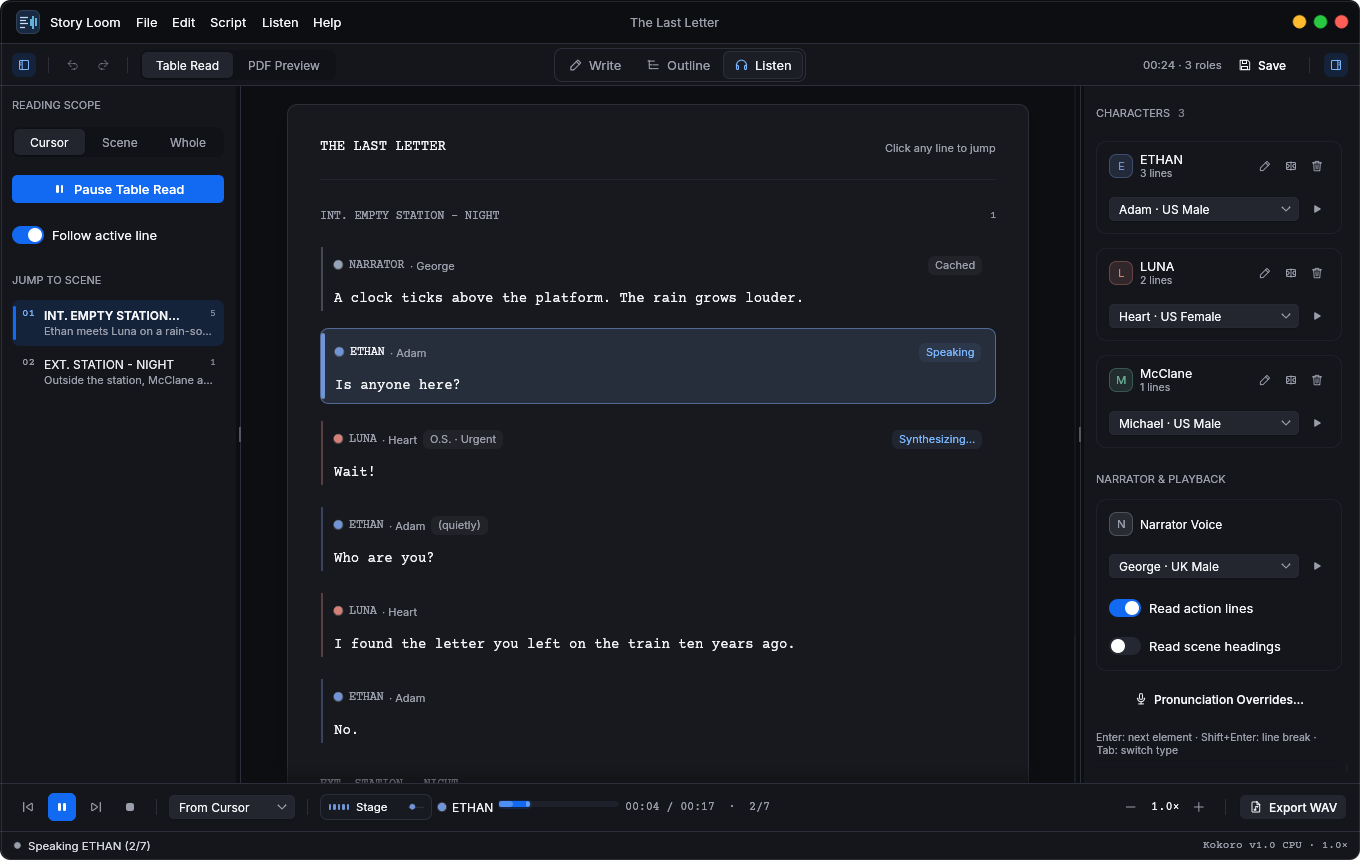
As you type character cues in Write, Story Loom automatically builds your Characters roster in the right-hand inspector with live dialogue line counts and color-coded role dots. For each character:
- Open the voice selector dropdown and choose from 12 verified US and UK English voices bundled directly inside the application.
- Click the inline preview play button next to any voice to audition it immediately without affecting your segment cache budget.
- Click the character color dot to cycle its visual accent color across the script sheet, transport bar, and roundtable stage.
- Rename, merge duplicate character spellings (such as
LUNAandLUNA (O.S.)variants), or delete and reassign unused roles straight from the character card toolbar without losing dialogue blocks.
To keep fast scenes easy to follow by ear, cast contrasting timbres across characters who share frequent exchanges. Story Loom bundles five US female voices (Heart for a warm natural lead, Bella for expressive delivery, Nova for crisp modern energy, Sarah for calm dramatic lines, and Sky for a bright youthful register), four US male voices (Adam for a grounded lead, Michael for deep resonant weight, Eric for conversational ease, and Liam for a measured youthful tone), one UK female voice (Emma for clear British diction), and two UK male voices (George as a classic British narrator and Daniel for dry understated delivery). Pairing a warm US lead against a dry UK antagonist, or separating two same-gender speakers by vocal weight, immediately reveals whether each character owns a distinct voice on the page.
Under Narrator & Playback, choose a dedicated Narrator Voice (George or Sarah work well as steady, unobtrusive storytellers) and toggle whether Story Loom should Read action lines and Read scene headings. Turning action narration off lets you run a pure dialogue-only rhythm check; turning it back on shows where dense visual paragraphs slow down urgent scenes. Internal Note blocks are always skipped automatically so production reminders never interrupt the performance.
Rehearse by Cursor, Scene, or Whole Script
In the Listen workspace—or directly from the persistent bottom transport bar while drafting in Write or Outline—choose your Reading Scope:
- Cursor: Starts from the currently selected line so you can rewrite two exchanges and replay them immediately.
- Scene: Focuses playback on the active scene for tight beat polishing and tension checks.
- Whole: Plays through the entire screenplay from opening fade-in to final line.
You can control rehearsal without leaving the keyboard: press Ctrl+Enter (Cmd+Enter on macOS) or F5 inside Write to start a table read right from your active line, press Space whenever no text field has focus to pause or resume, and press Esc to stop playback cleanly. The transport bar also provides previous-line and next-line stepping buttons along with five speed presets (0.8×, 0.9×, 1.0×, 1.1×, and 1.2×)—try 1.1× to expose sluggish comedy or thriller exchanges, or 0.9× to inspect dense dramatic exposition.
Enable Follow active line to keep the speaking card centered as playback advances, or click any line card to jump straight to that moment. Already-rendered lines display a Cached badge and replay instantaneously from Story Loom's local disk cache, while upcoming segments synthesize ahead of playback in the background. If you tweak a word in Write while playback is already running, Story Loom finishes the current snapshot cleanly without jarring mid-sentence jumps, shows an Edited badge with a Replay button, and re-synthesizes only the changed lines when you restart.
Fix tricky names with Pronunciation Overrides
Screenplays are full of invented surnames, fictional towns, foreign expressions, and technical acronyms that generic pronunciation lexicons miss. In Listen, check the Check Pronunciation section in the sidebar to spot unusual words automatically, or click Pronunciation Overrides… in the right inspector at any time.
Enter the written word exactly as it appears in your script (for example, McClane or an organization acronym) and provide either a plain phonetic spelling (such as Mick-Clane) or check Replacement is raw Kokoro IPA when you want exact phoneme control. Story Loom persists overrides per project without modifying your printed screenplay text and automatically invalidates and re-synthesizes only the affected audio segments.
Quick table-read troubleshooting checklist
- No sound when pressing Play on a new scene: Confirm your scene contains dialogue blocks or enable Read action lines under Narrator & Playback if the scene is purely visual action.
- One character splits into two different voices: Look in the Characters sidebar for stray extensions like
(V.O.)or typos, then use Merge Characters so every cue shares one voice and one stereo seat. - Voice engine status shows unavailable: Open Settings & Diagnostics to inspect the Kokoro-82M v1.0 CPU status and SHA-256 verification, and click Retry Engine Initialization after connecting headphones or changing your system audio device.
- Reclaiming disk space after large projects: Open Settings & Diagnostics to view cached segment count and storage usage, and click Clear Cache whenever you want a fresh local audio cache.
Next, give each character physical presence across your headphones in using the Virtual Roundtable Stage and Room Ambience.