
Scan Multi-Page PDFs and Sheet Music Images to Notation
Bringing a printed piano anthology, choir rehearsal packet, or chamber arrangement into editable digital notation starts with clean local ingestion. Score Craft reads multi-page PDF sheet music, single or multi-image PNG and JPG scans, and existing MusicXML (.musicxml and .mxl) documents directly on your Windows or Linux computer. Nothing is uploaded to an external recognition server, which keeps unpublished arrangements, teaching handouts, and licensed editions entirely on your own disk.
Prepare source PDFs and scans for reliable optical recognition
Vector-printed PDFs exported directly from a notation program or publisher archive produce the cleanest first draft because staff lines, noteheads, accidentals, and flags have sharp edges and uniform contrast. Scanned books and photocopied recital scores also work well offline, provided you remove obvious imaging defects before opening the file.
When scanning physical sheet music on a flatbed scanner, set monochrome or crisp grayscale output at 300 DPI or higher and flatten the spine so systems do not bow upward near the binding. Avoid harsh shadows across measure barlines or dark margins around page edges, because high-contrast artifacts along a border can be mistaken for vertical barlines or ledger lines. If you photographed loose pages with a camera, crop away table surfaces and correct perspective skew so every five-line staff runs horizontally across the frame.
Score Craft also opens existing .musicxml and compressed .mxl files without running optical recognition. That route is especially useful when an arranger or colleague sends a notation export that still contains mismatched beat totals, missing accidentals, or awkward octave leaps and you want to audition and proofread it locally.
Open a PDF, image batch, or MusicXML file locally
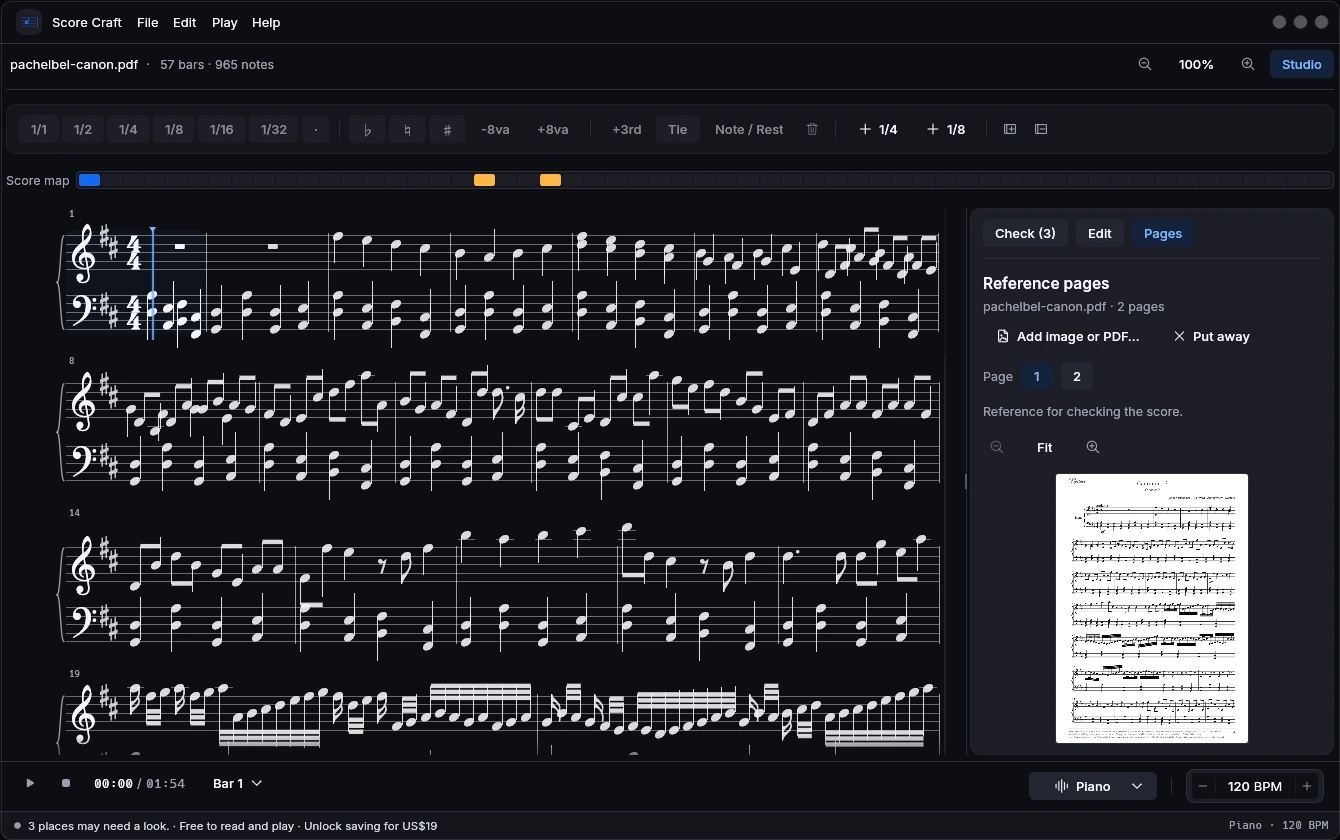
Launch Score Craft and select File from the top menu bar to open a multi-page PDF, an individual PNG or JPG page, or a MusicXML score. On a multi-page PDF such as a two-page piano arrangement of Pachelbel's Canon spanning fifty-seven bars and nearly a thousand notes, local recognition processes every page sequentially and assembles one continuous playable document.
Once engraving finishes, inspect the header bar just below the menu. It reports the active filename, total bar count, and recognized note count alongside zoom controls and the Studio dock toggle. If the bar count is noticeably lower or higher than your printed copy, switch to the Pages tab in the right-hand Studio dock immediately to confirm whether an extra cover page, title sheet, or half-cropped final system was included in the pass.
Manage multi-page scores in the Reference Pages dock
Physical scores rarely live in a single image file. When a student photographs pages one through four as separate PNG or JPG images, open the first page normally, then click Pages in the Studio dock. The Reference Pages panel displays the currently linked source document, total page count, and numbered page buttons so you can inspect any sheet beside the engraved grand staff.
Click Add image or PDF... inside the Reference Pages dock to append the next scanned page in reading order. Score Craft parses the appended material and extends the engraved score without forcing you to merge images externally in a separate utility. Use the Fit control and zoom magnifying icons inside the Reference Pages panel to match the scale of the original print against the engraved system on the left, or click Put away when you want full-width workspace room for reading and playback.
Run a fast layout and playback sanity check
Before editing individual pitches or diving into dense sixteenth-note passages, spend sixty seconds confirming that the macro structure matches your printed copy:
- Check the opening clef pair, key signature, and time signature in bar 1 against page 1 in the Reference Pages panel.
- Scan the Score map overview strip running across the top of the engraved canvas. The blue marker tracks your current playhead measure, while amber blocks reveal exactly which bars raised automatic proofreading alerts.
- Press Play on the bottom transport bar to hear the piece through the built-in Salamander Grand piano voice. Switch between any of the six additional built-in audition voices when checking contrapuntal lines or ensemble parts where distinct timbres make inner voices easier to follow.
- Use the continuous BPM control on the lower right to slow rapid arpeggios or dense polyphony down to half speed. Wrong key signatures, dropped clefs, or shifted barlines reveal themselves almost immediately by ear even when a crowded page looks convincing at a glance.
If a particular section sounds slightly clipped or rushes a beat, resist the urge to rebuild the entire bar from scratch right away. Instead, inspect the amber markers in the score map and open the pinpoint proofreading diagnostics guide to resolve flagged measures systematically against cropped source evidence.
Keep the full offline workflow connected
Importing clean source pages is the first phase of a repeatable local routine. After your initial playback pass, walk through flagged bars in the Studio Proofreading Dock guide, refine individual notes, articulations, and bar settings in the measure and notation editing guide, and check delivery formats in the MusicXML, MIDI, and WAV export guide.
For a broader look at how scanning, proofreading, and editing fit together across piano solo and chamber repertoire, read the complete offline sheet music scanning workflow or the PDF to MusicXML and MIDI production guide. Ready to test your own PDFs locally in Community Edition? Visit the Score Craft download page, browse all guides in the help center, or explore comparisons and FAQs on the Score Craft blog. You can also read this scanning guide in Simplified Chinese.