
Offline Sheet Music Scanning Workflow: From PDF to Clean Scores
Turn multi-page PDF sheet music and image scans into playable, proofread MusicXML, MIDI, and WAV scores locally on Windows and Linux without cloud uploads.
Digitizing a paper anthology or archival PDF score rarely fails because the scanner cannot read quarter notes in C major. It fails three pages later—when a faint sixteenth-note beam drops a beat, a phrase slur turns into a stuck tie across a barline, or a sudden left-hand treble clef throws an entire accompaniment line off by an octave. Most musicians have tried uploading a PDF to a generic cloud converter only to spend an evening repairing dozens of silently shifted bars in a separate notation editor.
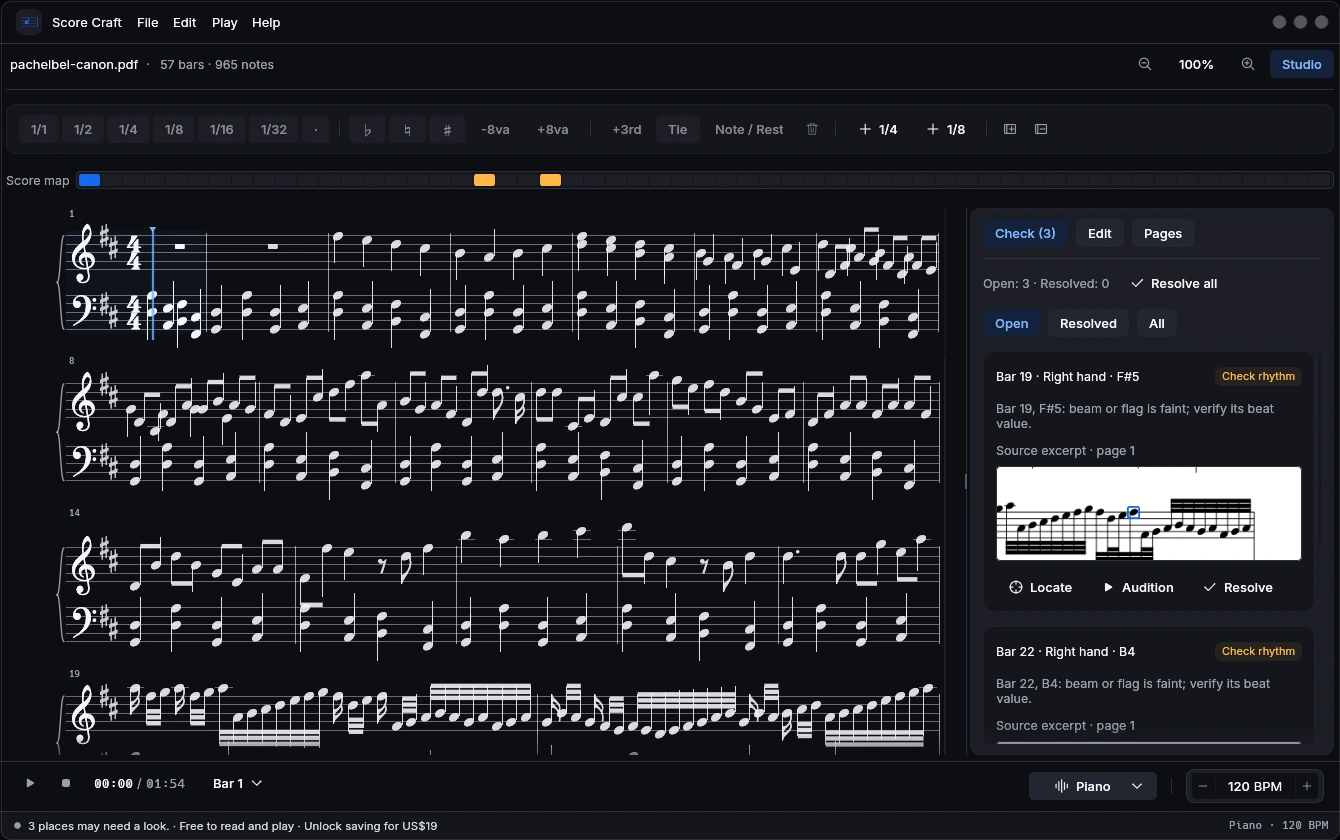
Score Craft treats optical music recognition as a four-stage desktop craft instead of a black-box file upload. Running completely offline on Windows x64 and Linux x64, it joins local PDF and image scanning, live grand-staff piano playback, pinpoint source-excerpt proofreading, and direct measure editing inside one studio window before you ever export MusicXML, MIDI, or WAV audio.
Why keeping recognition offline changes daily music work
Working locally on your own workstation solves three practical headaches that cloud web tools routinely create for working pianists, arrangers, teachers, and choir directors.
First, unpublished manuscripts, commissioned arrangements, school recital packets, and personal PDF sheet music libraries stay strictly on your own storage. There is no file-size queue, no third-party retention policy to read before scanning a client's score, and no internet connection required in a rehearsal studio, conservatory practice room, or backstage prep area.
Second, optical recognition stays tightly coupled to real-time playback and visual evidence. Instead of downloading a detached XML file and squinting back and forth between two unrelated windows to guess why bar 27 sounds wrong, you inspect the engraved grand staff right beside cropped excerpts and full reference pages from the exact PDF you loaded.
Third, you can verify every challenging bar free in Community Edition—scanning, proofreading, editing, and auditioning full multi-page scores—before deciding whether a one-time license for MusicXML, MIDI, and WAV export fits your production schedule.
Stage 1: Ingest clean multi-page PDFs, images, or existing MusicXML
Every strong digitization pass begins with disciplined source input. Vector PDFs from publisher downloads and clean 300 DPI grayscale book scans give local optical recognition clear staff lines, distinct stems, and legible accidentals. When a recital piece lives across four separate PNG or JPG camera scans, open page one locally and append the remaining sheets sequentially inside the Reference Pages dock so the piece stays assembled as one continuous grand-staff document.
Score Craft also ingests existing .musicxml and compressed .mxl files directly. That lets you bring third-party exports into the same playback and proofreading bench whenever a colleague sends a notation file with suspicious measure lengths or awkward register jumps. For step-by-step preparation advice, page appending, and initial playback checks, follow the PDF and image scanning guide.
Stage 2: Triage uncertain bars with pinpoint diagnostics and source crops
Human attention is the scarcest resource when digitizing a ten-page sonata or choral accompaniment. Reading fifty clean bars line by line wastes time and causes fatigue right when dense figuration appears. Score Craft's Score map overview strip sits directly above the engraved grand staff and flags uncertain bars in amber while tracking the live playhead in blue.
Open the Studio Proofreading Dock (Check tab) to work straight through the prioritized queue. Every diagnostic card states the bar number, staff (Right hand or Left hand), note pitch, and exact issue category: Check pitch, Check rhythm, Check rest, Too many beats, Too few beats, Voice conflict, Unclosed tie, or Octave jump. Beat-count errors report exact beat deltas so you immediately know whether a missing dot or extra flag caused the mismatch.
Crucially, every card pairs its message with a zoomed crop of the original source PDF marked with a blue target box. Click Locate to snap the engraved view to that symbol, click Audition to hear the measure through the sampled Salamander Grand piano or one of six built-in audition voices, and apply one-click structural fixes (Auto-balance bar, Clear dangling tie, Shift octave, or Resolve voices) when appropriate. Track progress across Open, Resolved, and All filters until every amber marker is accounted for. Read the full walkthrough in the pinpoint proofreading diagnostics guide.
Stage 3: Refine notes, rhythms, and per-bar notation directly
When a complex passage needs bespoke musical judgment—such as a chromatic inner voice, an explicit courtesy natural, or a mid-piece modulation—switch to the Studio Edit dock right beside the grand staff. Click any note or rest to shift semitones or octaves (-8va / +8va), set flats, naturals, or sharps, update note values from 1/1 through 1/32 with dots, toggle ties, stack +3rd intervals, or flip between notes and rests without displacing neighboring beats.
For missing fragments on faded photocopies, insert rhythmic slots (+ 1/2, + 1/4, + 1/8, + 1/16) or enter diatonic notes rapidly via C D E F G A B step entry. Per-bar settings let you set tempo presets, meters (2/4, 3/4, 4/4, 6/8, 3/8, 2/2), key signatures, clefs, and repeat barlines, all protected by full Undo and Redo. Combine continuous BPM speed control during playback to catch subtle voice-leading errors by ear. Full controls are documented in the measure and notation editing guide.
Stage 4: Export verified MusicXML, MIDI, and WAV audio
Once the Check queue is clear and the engraved score aligns with your Reference Pages from opening upbeat to final double barline, export the exact format your next tool expects:
| Downstream goal | Recommended export | Why proofreading first matters |
|---|---|---|
| Transposing, part extraction, or publishing in MuseScore, Dorico, Finale, or Sibelius | .musicxml or .mxl |
Clean key signatures, meters, ties, and balanced bars import without broken measure layouts |
| Virtual instrument mockups or tempo mapping in a DAW | .mid |
Balanced bar totals and cleared dangling ties keep every downbeat locked to the timeline grid |
| Offline ear-training or choir rehearsal audio | .wav |
Verified pitches and musical tempos produce dependable practice recordings without notation software |
Review pre-export verification steps and licensing boundaries in the MusicXML, MIDI, and WAV export guide. For a concrete hands-on production scenario covering piano and chamber repertoire from raw PDF through downstream import, read the PDF sheet music to MusicXML and MIDI guide.
Compare desktop scanners and check common buyer questions
Choosing a sheet music scanner depends on your operating system, input style, and how much proofreading control you want before exporting. Before committing to a workflow, review our objective workflow comparisons:
- Read Score Craft vs ScanScore if you are deciding between mobile-assisted scanning tiers and an offline Windows and Linux studio with free proofreading and editing.
- Read Score Craft vs Audiveris and PhotoScore if you are weighing open-source Java OMR pipelines or Sibelius-centric engraving suites against an integrated desktop reader and editor.
- Check the sheet music scanner software FAQ for clear answers on multi-page PDF limits, scan quality, playback voices, Community Edition features, and one-time licensing.
Whenever you are ready to run a real PDF from your own music library through this four-stage offline routine, grab the Windows or Linux build on the Score Craft download page, explore every tutorial in the help center, or read additional workflow articles on the Score Craft blog. You can also read this complete workflow guide in Simplified Chinese.