
Compare Original Recording and MIDI With Level-Matched A/B
A piano roll can look tidy at full-track zoom while hiding an octave error, a missed re-articulation, or a clipped sustain tail that ruins the musical feel inside a DAW. Visual inspection alone rarely exposes subtle phrasing mistakes. Melody Craft solves this by pairing the piano roll with instantaneous Recording versus MIDI switching at matched perceived loudness, letting your ears audit every phrase directly against the source take before you export anything.
Why level matching changes how you hear errors
When you compare two audio streams at unequal volume, human hearing almost always judges the louder stream as punchier, cleaner, or more accurate — even when its timing or pitch is slightly off. If your raw vocal demo was recorded conservatively at low headroom while a built-in piano preview blasts out near full scale, switching between them jolts your ears and masks small rhythmic discrepancies.
Melody Craft computes perceptual gain alignment between your source take and the synthesized MIDI preview, displaying the Level matched badge right beside the Recording and MIDI buttons in the transport bar. Because perceived loudness stays balanced across the flip, you never reach for a volume slider mid-bar. Instead, your attention stays locked onto the four things that actually matter in transcription: pitch center, attack timing, note duration, and bend contour.
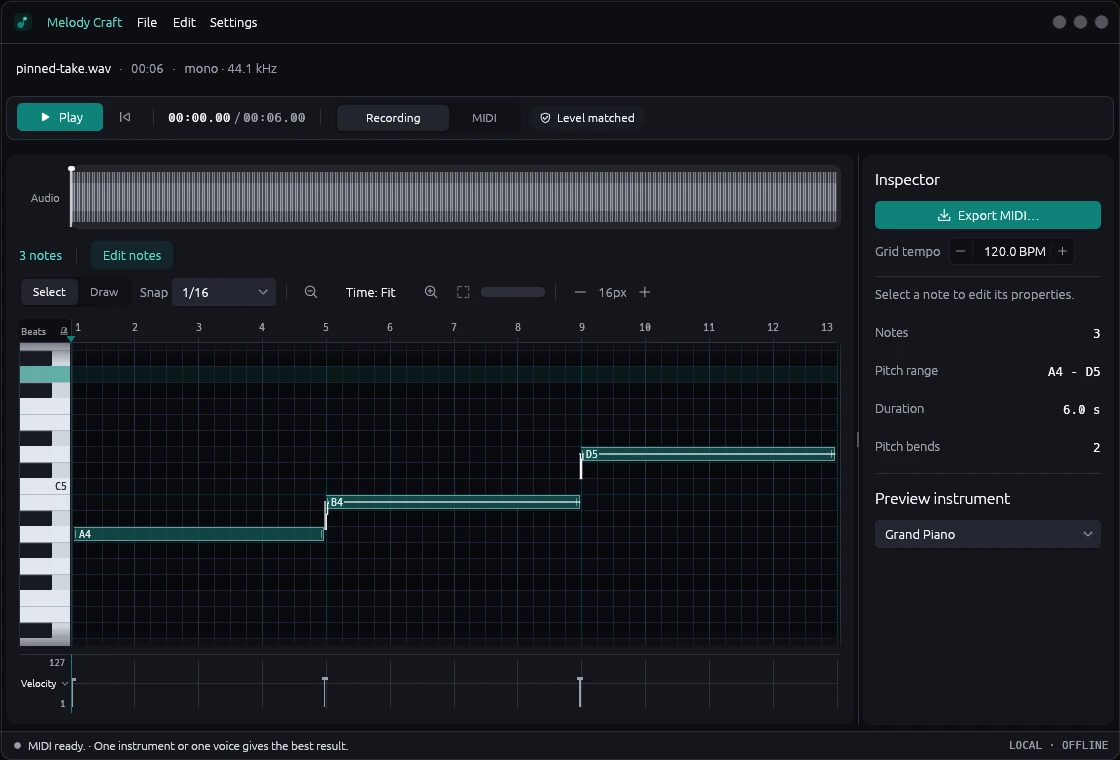
Flip smoothly between Recording and MIDI during playback
Press Play and listen through one complete phrase in Recording mode first to anchor the true groove and intonation in your memory. Then click MIDI while transport keeps rolling. Both streams stay sample-locked to the exact same timeline, so switching back and forth happens seamlessly without restarting from zero or losing your place in the measure.
For dense passages, use the aligned Audio waveform strip directly above the piano roll to target suspect regions:
- Click or drag across the waveform strip to park the playhead half a beat before a difficult transition, ornament, or fast pickup figure.
- Watch the playhead cross both lanes simultaneously. Seeing a sharp transient spike in the waveform while the piano roll shows a single uninterrupted sustained bar immediately tells you the engine missed a same-pitch re-attack.
- Flip back and forth over the same two seconds three or four times. A single fast toggle reveals whether a vocal scoop lands early, whether a bass ghost note disappeared, or whether a sustained ending stopped short of the waveform decay.
- Zoom horizontally using the Time controls (
Time: Fit, zoom in/out buttons, and horizontal scrollbar) and adjust vertical row height (pxcontrols) when you want to inspect closely spaced pitch steps or stacked bend lines in detail.
If you prefer inspecting individual notes out of context, right-click any note in the piano roll to Set playhead to note or audition its isolated pitch. Checking an ambiguous note solo and then immediately inside the surrounding phrase prevents over-correcting natural rubato.
Pick the preview voice that exposes your instrument's errors
Melody Craft includes built-in preview voices organized across familiar families — Piano, Guitar, Bass, Strings, Synth, and Wind — accessible from the Preview instrument dropdown in the lower right Inspector. Choosing the right preview voice is a practical diagnostic decision, not just an aesthetic preference.
- Use Grand Piano for attack timing and pitch clarity. A percussive hammer attack makes every onset boundary unmistakable. Even when you transcribed a legato vocal or violin take, auditioning once on Grand Piano exposes double-triggered syllables, slightly late note starts, or accidental grace-note fragments immediately.
- Use Electric Bass for low-register takes (
E1–D2and nearby octaves). Bass fundamentals can sound muddy or deceptive when auditioned on a bright piano voice, and octave-up harmonic misdetections are easy to miss until you hear the part in bass register. Switching to Electric Bass makes low-end weight, slide smoothness, and sustain tails match the musical role of the recording. - Use sustained Synth, Strings, or Wind voices to evaluate vibrato and pitch bends. A decaying piano note fades away before a long vocal vibrato or fretless slide finishes. Switching to a sustaining preview voice holds full level throughout the bar so you can hear every subtle upward scoop, downward dip, and release tail carried by the stepped pitch-bend curve.
When you switch preview voices, the footer briefly shows MIDI preview preparing… while Melody Craft re-renders the local preview buffer with the new voice and preserves loudness matching automatically. Your underlying MIDI note data never changes when you audition different voices.
Run a repeatable four-pass listening audit
Rather than fixing random blips in whatever order you notice them, walk through every take with a fast four-pass audit that catches 90% of real transcription issues in under two minutes:
- Octave and pitch pass: Listen on Grand Piano or a matching register voice (
Electric Bassfor bass). Flag any bar where a strong second harmonic pulled a low note an octave too high or where a breathy vocal fry dropped an octave too low. - Attack and split pass: Compare the waveform spikes against note starts. Mark sustained bars that should be split into repeated same-pitch notes, and mark single held notes that were accidentally fractured by vibrato swells.
- Sustain and release pass: Listen closely to phrase endings. Check whether long notes decay naturally with the waveform or get cut off prematurely before the next rest.
- Pitch-bend expression pass: Switch to a sustaining preview instrument and flip between Recording and MIDI over slides, hammer-ons, and vocal runs. Confirm whether the bend curve tracks the player's motion cleanly or needs cleaning or overlap trimming.
Keep an eye on the Inspector's Pitch bends counter during that fourth pass. If you recorded a dry piano arpeggio and see unexpected bends on nearly every note, toggling Keep slides and vibrato off in Preferences and re-converting can produce a cleaner result immediately.
Troubleshooting local audio preview
Because Melody Craft runs strictly offline using your local audio hardware, playback depends on an active output device. If you unplug headphones or start the app without a configured speaker output, Melody Craft warns that no audio device is available while preserving all your notes and editing controls intact. Reconnect your interface or headphones, confirm system output routing, and resume auditioning without re-transcribing the recording.
Once your A/B audit identifies the exact bars that need attention, head into editing piano-roll notes, velocity stems, and pitch bends to tighten the phrase, or learn how to dial in cleaning modes and recognition thresholds when an entire take needs broader calibration before manual tweaks.